Filter Cases and Display Options
Filtering Cases
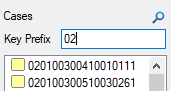
To view a subset of cases in a data source, you can enter a search query to filter the cases shown. The query will only filter by the key (case IDs), not case labels. In the case listing, click on Show Filters and enter the key filter. The list of cases is filtered automatically. For example, this query only shows cases that have a key that starts with "02":
Note:
- Typically filtering cases is done by key prefix ("starts with"), but it is also possible to see cases with a key less than (<), less than or equal (<=), greater than or equal (=>), or greater than (>) than the filter.
- Filtering cases works in tandem with any display options (see below).
- Wildcard symbols or regular expressions are not supported.
- To dismiss the filter, click on Hide Filters.
Display Options
There are several display options that determine how and what cases are listed. From the Listing menu:
- Case Listing Order
- Sequential: Displays cases in "position" order.
- Indexed: Displays cases in key order.
- Case Filters
- All Cases: All cases in the data source, including deleted cases, are displayed.
- Not Deleted Cases Only: Cases that are deleted are not shown.
- Partial Cases Only: Only partially saved cases are shown.
- Duplicate Cases Only: Only cases that share a key with other cases are shown.
- Case Order
- Ascending: Using the selected case listing order, displays the cases in ascending order.
- Descending: Displays the cases in descending order.
- Case Label Type
- Case Label: Shows the case label, or the case key if no case label is set.
- Case Key: Shows the case key.
See also: Views