- CSPro Getting Started Guide
- Introduction
- Installation
- CSPro Tutorial
- About the Tutorial
- Exercise 1: Create a Data Entry Application
- Exercise 2: Create the Data Dictionary
- Exercise 3: Create the Data Entry Forms
- Exercise 4: Enter Data
- Exercise 5: Tabulate Data
- Exercise 6: Modify the Table
- Exercise 7: Add Edits to the Data Entry Application
- Exercise 8: Run a Batch Application
Step 4: Modify a Case
(Exercise 4, Enter Data)
Now we realize that the first person in the household is really 45-years-old and not 48 as we typed in. We will go back into the data and change this value.
- Click on
 on the toolbar, or press Ctrl+M to enter Modify mode. You should see the first form, with the value 1 showing for MyDict identification.
 - Press the PgDn key to advance to the next form.
- Type 45 in the Age field.
- Press F12 to indicate that you have finished making your changes.
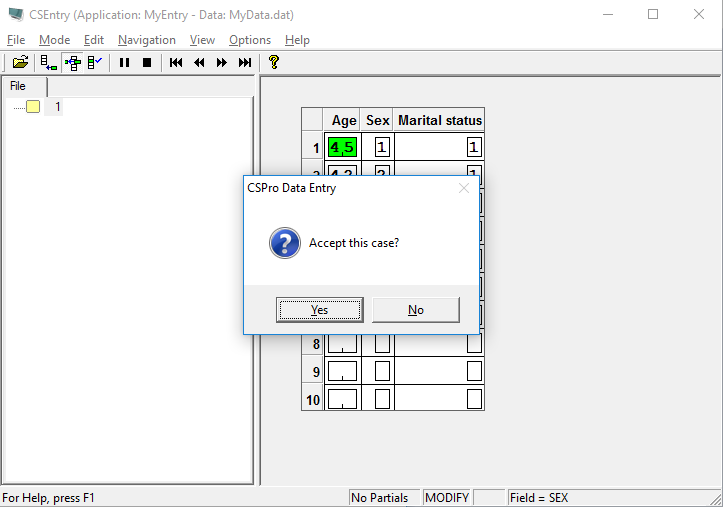
- The screen will now look something like the picture below. CSEntry will ask you to accept the case, like it did in the previous step. Select Yes.
- CSEntry will save your changes and exit from Modify mode.
- Close CSEntry by clicking on the X in the top right corner, or selecting File -> Exit from the main menu.
This completes this exercise. Continue to the next exercise: Step 1: Create a Tabulation Application.