- CSPro Getting Started Guide
- Introduction
- Installation
- CSPro Tutorial
- About the Tutorial
- Exercise 1: Create a Data Entry Application
- Exercise 2: Create the Data Dictionary
- Exercise 3: Create the Data Entry Forms
- Exercise 4: Enter Data
- Exercise 5: Tabulate Data
- Exercise 6: Modify the Table
- Exercise 7: Add Edits to the Data Entry Application
- Exercise 8: Run a Batch Application
Step 3: Finish Adding a Case
(Exercise 4, Enter Data)
We will now tell the roster that we have finished entering people.
- Hold down the Ctrl key.
- Press the slash key / (on the numeric keypad). The next form will appear on the screen. If you have trouble finding this key combination, which could be the case on some laptops, you can select Navigation -> End Group from the main menu.
Next we will type in the household form and end the case.
- Type 1 in the Type household field.
- Type 1 in the Type roof field.
- CSEntry will ask us to accept the case. At this point you can select No and go back and make changes to the data in the case if you like. If you are satisfied that the data are correct, press Enter or select Yes.
- CSEntry will now show the first form again, with the cursor ready for you to type in another case. We will now stop adding cases. Click
 on the toolbar, or press Esc or Ctrl+S, or select Mode -> Stop from the main menu.
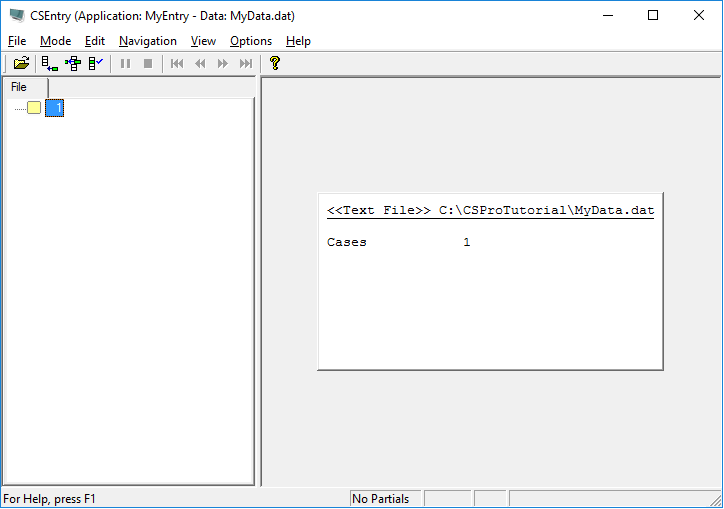
When you have completed this step the screen should look something like:
Continue to the next step: Step 4: Modify a Case.