- CSPro Getting Started Guide
- Introduction
- Installation
- CSPro Tutorial
- About the Tutorial
- Exercise 1: Create a Data Entry Application
- Exercise 2: Create the Data Dictionary
- Exercise 3: Create the Data Entry Forms
- Exercise 4: Enter Data
- Exercise 5: Tabulate Data
- Exercise 6: Modify the Table
- Exercise 7: Add Edits to the Data Entry Application
- Exercise 8: Run a Batch Application
Step 2: Add a Case
(Exercise 4, Enter Data)
We will now type in the data for our first case (questionnaire). We will use a fictitious family of four.
- Type 1 then Enter to fill in the ID item. The next form will appear, showing the person roster.
- Type 48 in the Age field. The cursor will move to the Sex field.
- Type 3 in the Sex field. CSEntry will tell you this value is out of range, because it is not in the value set for Sex you created in your data dictionary.
- With the OUT OF RANGE message still showing, type 1. The message will go away and the cursor will move to the Marital status field.
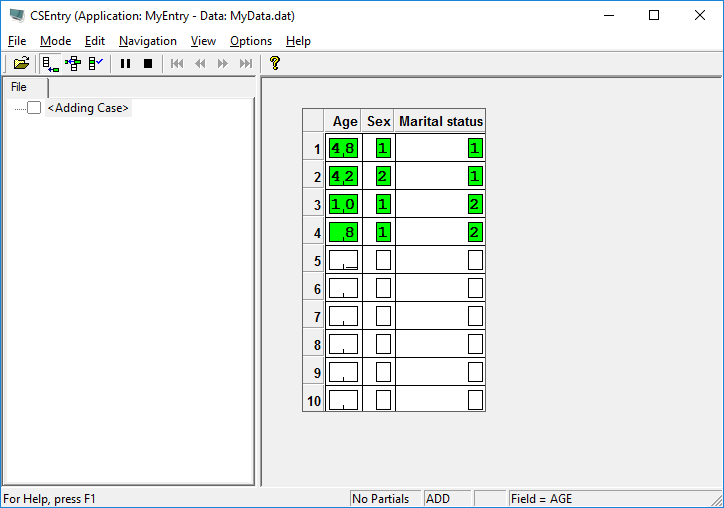
- Continue typing in data for the family as shown below.
Some CSEntry tips:
- You can move backward to the previous field using Shift+Tab, left arrow or up arrow.
- You can move forward to the next field using Enter, Tab, right arrow or down arrow.
- You can change a field by simply typing a new number into it.
- You can erase a field using the space bar.
Continue to the next step: Step 3: Finish Adding a Case.