- <GetStart>
- CSPro User's Guide
- The CSPro System
- Data Dictionary Module
- Introduction to Data Dictionary
- Organization
- Dictionary Concepts
- Data Dictionary Application
- How to ...
- Open an Existing Dictionary Application
- Move Around a Dictionary
- View the Dictionary Layout
- Add Dictionary Elements
- Modify Dictionary Elements
- Add or Modify Levels
- Add or Modify Records
- Add or Modify Items
- Add or Modify Value Sets
- Linked Value Sets
- Generate Numeric Value Set
- Add or Modify Values
- Undo and Redo Changes
- Select Several Dictionary Elements
- Insert Dictionary Elements
- Delete Dictionary Elements
- Move Dictionary Elements
- Find Dictionary Elements
- Document Dictionary Elements
- Convert Items to Subitems
- Select Relative or Absolute Positioning
- Create Dictionary with No Record Types
- Occurrence Labels
- Add or Modify Relations
- Print the Dictionary File
- Save Dictionary as New File
- Multiple Language Dictionaries
- Dictionary Macros
- Dictionary Analysis
- Dictionary Security Options
- The CSPro Language
- Data Entry Module
- Batch Editing Applications
- Tabulation Applications
- Data Sources
- Synchronization
- CSPro Statements and Functions
- Text Templates
- Templated Reporting System
- HTML, Markdown, and JavaScript Integration
- Action Invoker
- Appendix
- <CSEntry>
- <CSBatch>
- <CSTab>
- <DataManager>
- <TextView>
- <TblView>
- <CSFreq>
- <CSDeploy>
- <CSPack>
- <CSDiff>
- <CSConcat>
- <Excel2CSPro>
- <CSExport>
- <CSIndex>
- <CSReFmt>
- <CSSort>
- <ParadataConcat>
- <ParadataViewer>
- <CSCode>
- <CSDocument>
- <CSView>
- <CSWeb>
Multiple Language Dictionaries
You can create dictionary labels in more than one language. To do this, while editing your dictionary, go to the Edit menu and select Languages. You will be presented with the following dialog box, from which you can add (or remove or modify) languages. (This is similar to the way that you define languages for question text.)
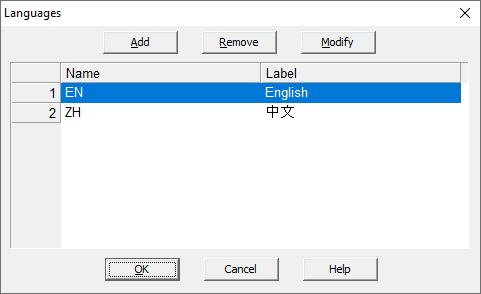
Once your application has more than one language, the dictionary toolbar will be updated to display the names of all defined languages:

Each language will have its own set of labels for all of the dictionary elements (record labels, item labels, value labels, occurrence labels, etc.). If a label is not defined for a given language, the label will default to the label for the first language. To simplify the editing of labels, you can press the keyboard shortcut Ctrl + Alt + L to switch between the languages.
When adding items to your data entry forms, you can specify that the field labels should be directly linked to the dictionary label. This default setting ensures that the field labels change when the user changes the language during data entry.
For your application to fully take advantage of multiple language dictionaries, you must also define question text languages. When running your data entry program, CSEntry will only list these, but choosing a language will change both the question text language as well as the language used for dictionary labels.