- CSPro Getting Started Guide
- Introduction
- Installation
- CSPro Tutorial
- About the Tutorial
- Exercise 1: Create a Data Entry Application
- Exercise 2: Create the Data Dictionary
- Exercise 3: Create the Data Entry Forms
- Exercise 4: Enter Data
- Exercise 5: Tabulate Data
- Exercise 6: Modify the Table
- Exercise 7: Add Edits to the Data Entry Application
- Exercise 8: Run a Batch Application
Step 2: Write Logic and Compile
(Exercise 8, Run a Batch Application)
We will write the same logic we used in the previous exercise.
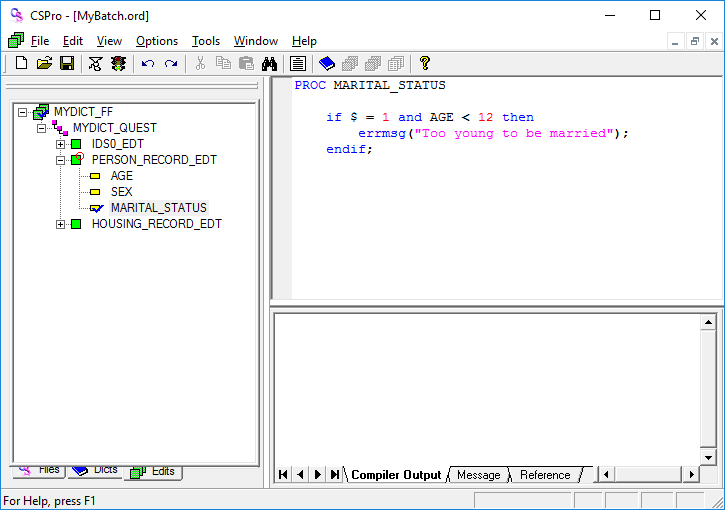
- Press Ctrl+T to show names instead of labels in the edits tree.
- Click on the + next to PERSON_RECORD_EDT then click on MARITAL_STATUS. The frame on the right hand side of the screen should show PROC MARITAL_STATUS at the top.
- Type in the logic exactly as you see below.
- Note that we used $ in place of MARITAL_STATUS. This is the same thing because the logic is inside the procedure for MARITAL_STATUS. In the CSPro language, $ is a short way of saying "this item."
- Compile the logic by clicking
 on the toolbar, or pressing Ctrl+K or selecting File -> Compile from the main menu.
 - Correct any errors until you see Compile Successful.
Continue to the next step: Step 3: Run the Batch Application.