- CSPro Getting Started Guide
- Introduction
- Installation
- CSPro Tutorial
- About the Tutorial
- Exercise 1: Create a Data Entry Application
- Exercise 2: Create the Data Dictionary
- Exercise 3: Create the Data Entry Forms
- Exercise 4: Enter Data
- Exercise 5: Tabulate Data
- Exercise 6: Modify the Table
- Exercise 7: Add Edits to the Data Entry Application
- Exercise 8: Run a Batch Application
Step 3: Test the Edit
(Exercise 7, Add Edits to the Data Entry Application)
We are now ready to run the data application and make sure our logic is working properly.
- Run CSEntry by clicking
 on the toolbar, or pressing Ctrl+R.
 - CSPro will ask you to save the changes. Click Yes.
- CSEntry will ask you to select a data file. Type MyData.dat for the file name, if it is not already there, then press OK.
- Type in any Operator ID.
- Click on
 on the toolbar, or press Ctrl+A to enter Add mode. The first form will appear with the cursor on MyDict identification.
 - Type 2 and then Enter to fill in the ID item. The next form will appear, showing the person roster.
- Type 10 in the Age field.
- Type 1 in the Sex field.
- Type 1 in the Marital status field.
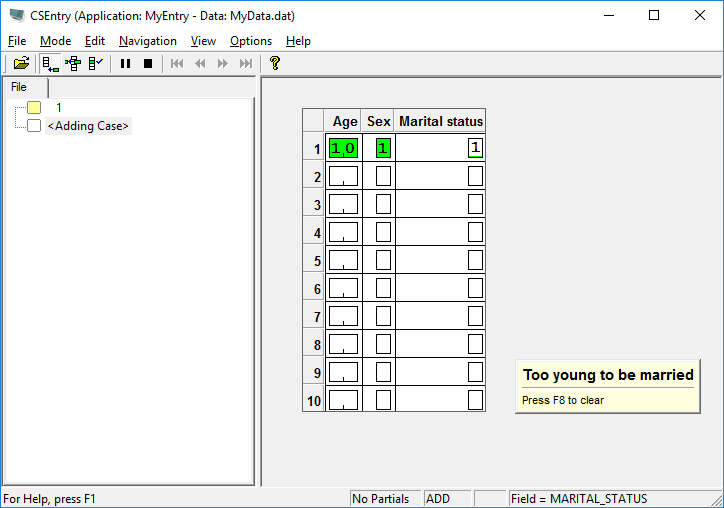
Your error message should appear on the screen as shown below.
Continue to the next step: Step 4: Complete the Case.