- CSPro Getting Started Guide
- Introduction
- Installation
- CSPro Tutorial
- About the Tutorial
- Exercise 1: Create a Data Entry Application
- Exercise 2: Create the Data Dictionary
- Exercise 3: Create the Data Entry Forms
- Exercise 4: Enter Data
- Exercise 5: Tabulate Data
- Exercise 6: Modify the Table
- Exercise 7: Add Edits to the Data Entry Application
- Exercise 8: Run a Batch Application
Step 2: Compile the Logic
(Exercise 7, Add Edits to the Data Entry Application)
You have typed logic in the CSPro language. Like all procedural languages, the system must check to make sure that there are no syntax errors. This is called compiling.
- Click on MYDICT_FF in the forms tree to show all the CSPro logic.
- Compile the logic by clicking
 on the toolbar, or pressing Ctrl+K or selecting File -> Compile from the main menu.
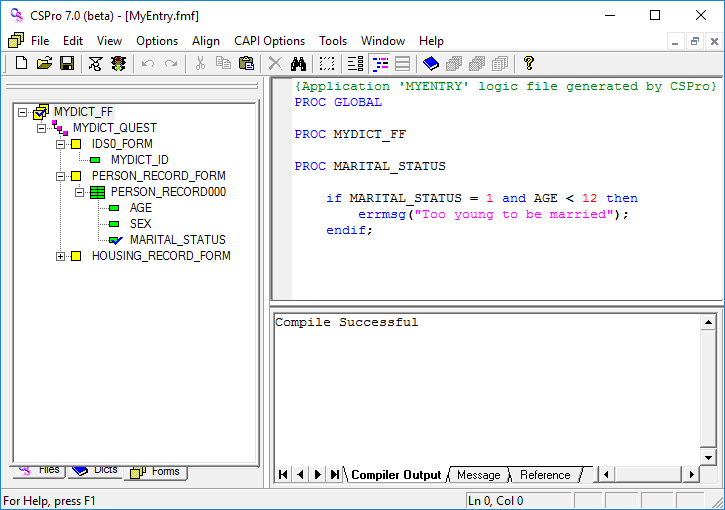
 - If you typed the logic correctly, you will see Compile Successful in the Compiler Output window under the logic.
- If you see a dialog box that says Compile Failed, you have typed something incorrectly. A red circle will appear in the margin indicating the approximate location of the error. The Compiler Output tab at the bottom of the screen will show you an error message to help you determine the error. Check very carefully to make sure you typed in exactly what was shown in the previous step.
When you have completed this step the screen should look something like:
Continue to the next step: Step 3: Test the Edit.