Dynamic Value Sets With the New ValueSet Object


CSPro 7.3 introduces new ways to work with dynamic value sets. Dynamic value sets define the acceptable options for a field and they vary based on responses previously given. Typical value sets, defined in the data dictionary, define a fixed set of responses for a field, but with a dynamic value set, you can customize these responses based on specific conditions.

Prior to CSPro 7.3, you could create dynamic value sets using arrays, but working with these was cumbersome and not intuitive. Now there is a ValueSet object that allow for simpler, and more sophisticated, value set creation. Four scenarios are presented below that show how to use the new ValueSet object.

Easily Create a Dynamic Value Set in a Loop

A typical task is to create a value set based on some attributes entered previously. For example, you might want to present a list of people in a household who are aged 15+ as eligible heads of household. Using the ValueSet object with a for loop with a where condition makes this task trivial:

PROC HOUSEHOLD_HEAD

preproc

   
ValueSet household_head_vs;

   
for numeric line_number in PERSON_ROSTER where AGE >= 15 do
        household_head_vs.
add(NAME, line_number);
   
endfor;

   
setvalueset(HOUSEHOLD_HEAD, household_head_vs);

Combining Value Sets

Suppose you have a question that asks about the way that someone deceased. In the dictionary there is one set of responses that applies to all people and an additional set of responses that applies to females aged 12+. Now you can easily create a dynamic value set, conditionally adding the female aged 12+ responses:

PROC MORTALITY_REASON

onfocus

   
ValueSet mortality_reason_vs = MORTALITY_REASON_ALL_PEOPLE_VS;

   
if SEX = 2 and AGE >= 12 then
        mortality_reason_vs.
add(MORTALITY_REASON_FERTILE_WOMEN_VS);
   
endif;

   
setvalueset(MORTALITY_REASON, mortality_reason_vs);

Removing a Value Based on a Previous Selection

Sometimes a questionnaire has a series of questions that asks about preferences, such as, "What is your favorite color?," and then, "What is your second favorite color?" The list of options for the second question can exclude the selected answer to the first question. The ValueSet object makes this task very easy:

PROC SECOND_FAVORITE_COLOR

preproc

   
ValueSet second_favorite_color_vs = FAVORITE_COLOR_VS;

    second_favorite_color_vs.
remove(FAVORITE_COLOR);

   
setvalueset(SECOND_FAVORITE_COLOR, second_favorite_color_vs);

Iterate Through Value Set Codes and Labels

Finally, there are two lists that are part of a value set, accessed using the codes and labels attributes. Just as ValueSet is a new object in CSPro 7.3, lists, though around in some form for years, are now fully useable objects. This simplifies iterating through the codes and labels of a value set. For example, if the first two digits of the county code are equal to the state code, a dynamic value set for counties could be created as follows:

PROC COUNTY

preproc

   
ValueSet filtered_county_vs;

   
numeric first_county_code = STATE * 100;
   
numeric last_county_code = first_county_code + 99;

   
do numeric counter = 1 while counter <= COUNTY_VS.codes.length()

       
if COUNTY_VS.codes(counter) in first_county_code:last_county_code then
            filtered_county_vs.
add(COUNTY_VS.labels(counter), COUNTY_VS.codes(counter));
       
endif;

   
enddo;

   
setvalueset(COUNTY, filtered_county_vs);

Validating Text Fields with Regular Expressions


There are many ways of formatting the text data you collect in a CSPro application. For example, in the United States it is common to write a telephone number as xxx-xxx-xxxx or (xxx) xxx-xxxx. If only a text field is used, the interviewer could enter either format. However, not knowing the format creates extra work post-data collection, so as the application developer you will want to accept a single format.

This is done using the regexmatch function which was introduced in CSPro 7.2. The function takes two strings, the target and a regular expression and returns whether there is a match or not. In this example, the target string is the telephone number and the regular expression string describes the valid variations of the telephone number.

Regular expressions have their own syntax separate from CSPro logic. To help write your regular expression you can use any regular expression editor that supports the ECMAScript (JavaScript) engine (or flavor).

Writing a Regular Expression

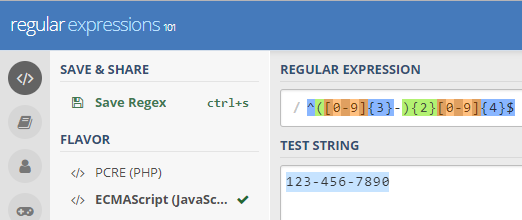
Let us write a regular expression that describes a telephone number in the following format: xxx-xxx-xxxx. We will use the online regular expression editor regex101, make sure to select ECMAScript as the flavor. Start by typing the phone number 123-456-7890 into the test string field. As you write the regular expression, you will notice that the test string is highlighted as it is described by the regular expression.

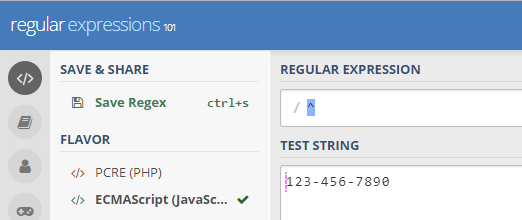
Step 1

step-1-regex101

Begin your regular expression by asserting its position at the start of a newline. This will keep your phone number from matching something like otherData123-456-7890.

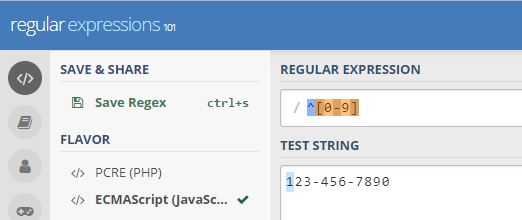
Step 2

step-2-regex101

The first character is any number from 0 to 9.

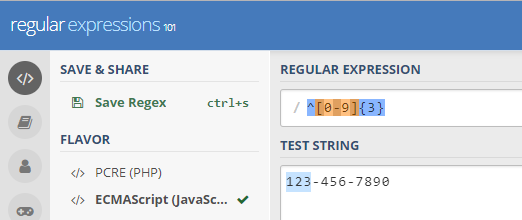
Step 3

step-3-regex101

The following two characters are also any numbers from 0 to 9. Signal that the pattern will repeat three times.

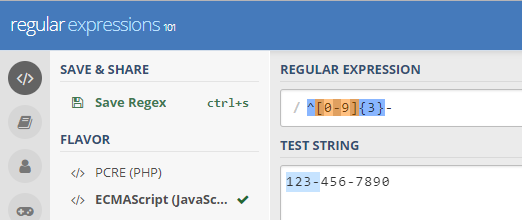
Step 4

step-4-regex101

The next character is a hyphen, and will match nothing else, so enter the literal hyphen character.

Step 5

step-5-regex101

Notice the pattern of the next four characters is the same as the past four. Wrap everything, but the caret in parentheses to create a capture group and signal that the pattern will repeat two times.

Step 6

step-6-regex101

The last four characters are any numbers from 0 to 9. Signal that the pattern will repeat four times.

Step 7

step-7-regex101

Finally, end your regular expression by asserting its position at the end of a newline. This will keep your phone number from matching something like 123-456-7890otherData.

Validating a Text Field

With your regular expression in hand, you are ready to validate the telephone number in CSPro. Call regexmatch passing in the telephone number and the regular expression. If 0 is returned then display an error message and re-enter. This allows the interviewer to correct the telephone number. Otherwise, if 1 is returned, do nothing and let the interview continue.

PROC TELEPHONE_NUMBER

postproc

   
if regexmatch(TELEPHONE_NUMBER, "^([0-9]{3}-){2}[0-9]{4}$") = 0 then
       
errmsg("Invalid format! Use the following format: xxx-xxx-xxxx.");
       
reenter;
   
endif;

To see a working example, download the regexmatch application.

Disabling Automatic Updates on Android


Before sending interviewers into the field, consider what would happen if CSEntry automatically updated during your survey. If you developed a CSPro application for a previous version or the current version of CSEntry, you may not want the next update. Fortunately, it is simple to disable automatic updates for CSEntry or all apps on Android.

Disable automatic updates for CSEntry

  1. Open the Google Play Store google-play.
  2. Tap Menu menu > My apps & games.
  3. Select CSEntry.
  4. Tap More more.
  5. Uncheck the box next to "Auto-update."

Disable automatic updates for all apps

  1. Open the Google Play Store google-play.
  2. Tap Menu menu > Settings.
  3. Tap Auto-update apps.
  4. Select Do not auto-update apps.

Update apps manually

  1. Open the Google Play Store google-play.
  2. Tap Menu menu > My apps & games.
  3. Apps with an update available are labeled "Update."
  4. Tap Update All to update all apps. For individual apps, find the specific app you want to update and tap Update.

Tip: In some cases, you may need to restart your device to update an app.

Getting Started with CSPro


CSPro on census.gov

Download the latest versions of CSPro, CSEntry, and CSWeb. Watch CSPro videos and learn about upcoming U.S. Census Bureau workshops.

CSPro Help

CSPro Help is an excellent resource whether you are just getting started or an expert user. The help is available offline with an installation of CSPro or online at http://csprousers.org/help.

Popular Help Topics

CSPro Examples

CSPro Examples are a collection of data entry, edits & batch, and tabulation projects. Some projects are standalone, while others simply demonstrate common techniques. Here, you can see how the developers of CSPro design and code their applications. Feel free to use anything you see in these projects in your own project. The examples are an optional install. If selected they will be installed to your Documents folder under CSPro.

Debugging

Use of errmsg and trace

One of the most effective debugging tools at your disposal is the errmsg function. It can be useful to place them in PROCs, so you can see the order in which your application is executed. When this becomes burdensome, use the trace function. By enabling trace you'll see the execution of your application as it enters and exits each PROC. To see even more detail, set trace to output logic statements.

Has your application taken an unexpected path? Use trace in much the same way you would use errmsg to log the values of the conditional statement.

PROC GLOBAL

PROC DEBUGGING_FF

preproc

   
// Enable trace to see path of execution
    trace(on);

postproc

   
// Disable trace
    trace(off);

PROC ELIGIBLE

   
// Log user-generated information
    trace("AGE %d > 15 and SEX %d = 2", AGE, SEX);

   
// Begin outputting logic statements
    set trace;

   
if AGE > 15 and SEX = 2 then
       
skip to FERTILITY_FORM;
   
endif;

   
// Stop outputting logic statements
    set trace(off);

Use of Log Files

Log files expose a layer of detail otherwise unavailable.

Specifics of every synchronization will be written to the sync log. Depending on your OS you will find the sync log in either one of two places:

  • Android: csentry\sync.log
  • Windows: Users\username\AppData\Roaming\CSPro\sync.log

CSWeb makes use of two log files. These logs will only exist if you are using CSWeb:

  • csweb\logs\api.log
  • csweb\logs\ui.log

The API log records details related to the underlying RESTful API, while the UI log records actions related the navigation of the website.

Forum/Email

Need additional assistance? You can post questions to our forum at https://csprousers.org/forum. The forum has a couple of advantages. You may get a quicker response, because anyone in the CSPro Users community can respond. Also, it is likely someone has the same question as you, so it benefits the entire CSPro Users community to see the answer. As a secondary option, you can email the team at cspro@lists.census.gov. It is important to use the above email and not contact us directly. This helps us manage email support across our team.

Writing a clear question can be a challenge, but it is worth the extra effort. A clear question will lead to a quicker and more accurate response. Here are some tips to consider when writing your next question:

  • First, search the forum for an answer. Your question may have already been addressed.
  • Write a one sentence subject line in your forum post or email that summarizes the issue.
  • Start your post or email by expanding on your subject line and fill in necessary details.
  • Tell us how to reproduce the issue in bullet points.
  • If necessary, include just enough code to reproduce the issue.
    • This may be a snippet of code or a simplified application, but you should not be sending the entire application.
    • To prepare projects for attachment, use CSPack (Tools > Pack Application).
  • If useful, attach the appropriate log file (sync.log, api.log, or ui.log).
  • Proof-read your question--- is everything clear?
  • Finally, be prepared to answer follow-up questions when contacted by the team.

2016-03-02 Beta Release Notes


This is a beta release for CSPro 6.3. The future CSPro 7.0 release is going to introduce many changes, including a new way to store data, and it will have a significant impact on CSPro users. CSPro 6.3 is thus a release that builds incrementally off of CSPro 6.2 and may be the last release before the more significant CSPro 7.0 one. CSPro 6.3 introduces some new features and fixes some problems that were found in CSPro 6.2.

CSPro 6.3 is built with new versions of our programming tools, and this sometimes introduces quirks due to changes made by other parties. If you notice any unexpected behavior in CSPro 6.3, please email cspro@lists.census.gov. As part of this shift CSPro no longer runs on Windows XP machines.

We fixed a few bugs that users reported:

  • CSEntry taking a long time to redraw rosters on Windows.
  • Text Viewer crashing while opening a listing report.
  • The CSPro helps crashing when using the index on Windows 8 or 10.
  • The getos function not returning a correct value on Windows 10.
  • Underlines in question text not displaying correctly on Android.
  • Occurrence labels (set dynamically using setocclabel) not resetting when opening a new case.
  • Run as Batch not working when a data entry application used external logic files.

We are looking to streamline the CSPro language and other parts of the system. As part of this, in CSPro 6.3 we:

  • Removed the Convert Dictionary tool. It is now available on the Software page.
  • Removed the undocumented Android Wi-Fi peer-to-peer sync. If you used this, you should change your code to use Bluetooth instead.
  • Introduced deprecation warnings. If you are using features of the language that will no longer be supported in the future, you will see warnings when compiling your code. These can be controlled via the Options menu.

There are two new features in the CSPro Designer:

  • The position of the Designer window is saved and restored the next time you open CSPro.
  • If you want to view both names and labels at the same time, you can select View -> Append Labels to Names in Tree.

20160302 appendLabels

There are a couple enhancements for the Android CSEntry app:

  • The note icon appears blue when the field has a note, which is a nice way for the interviewer to know if they have left a note on the field.
  • A Review All Notes feature displays all of the notes for a case, allowing interviewers or supervisors to easily navigate to fields with notes. To access the feature, long-press on the notes icon or find the option off the menu button.
  • Help text defined for a field is now accessible and the interviewer can toggle between the question and help text.

20160302 help

There are a couple enhancements to the CSPro language:

  • You can use a negative index to get a substring starting from the right side of the string. For example: "JOANNA"[-4] returns "ANNA"
  • You can declare a numeric variable at the beginning of a do loop. In this case, the variable's scope will just be the duration of the loop.

    do numeric ctr = 1 while ctr <= totocc(PERSON_REC)

  • Savepartial has an optional parameter, clear. If used, the information in skipped fields will be cleared before the case is partially saved. Savepartial with clear simulates the behavior when a case is saved normally in system-controlled mode.
  • User-defined functions can now call themselves, meaning that recursion is now possible.
  • User-defined function pointers can be passed as arguments to other user-defined functions. For examples of this (and recursive functions), see the "Additional Examples of Functions" link at the bottom of the help page for functions.

There are three new CSPro language functions:

  • uuid: this function returns a string representing a universally unique identifier (UUID). This, a GUID, can be used if you need to uniquely identify something, as the odds of the function returning the same string twice are infinitesimally small.
  • loadsetting and savesetting: these functions allow you to store information as attribute-value pairs. The information is stored separately from any given application and thus can be shared between applications. These functions allow you to easily pass information between programs rather than needing to write information to a text file, external dictionary, or the parameters section of a .pff.